Navigating AppFaktors
My Work
Use the My Work page to track and manage your user tasks and subscriptions.
To access the My Work page, select My Work from the menu.
Tracking and managing tasks and subscriptions
To manage tasks and subscriptions:
Access the My Work page by selecting My Work from the menu.
Select the Tasks or Subscriptions tab.
A table of your tasks or subscriptions appears.
Click the view icon
 to see associated details.
Exporting task or subscription data
To export task or subscription data, select the Tasks or Subscriptions tab and then click the Excel icon to export to Excel, or the PDF icon to export to PDF.
Features
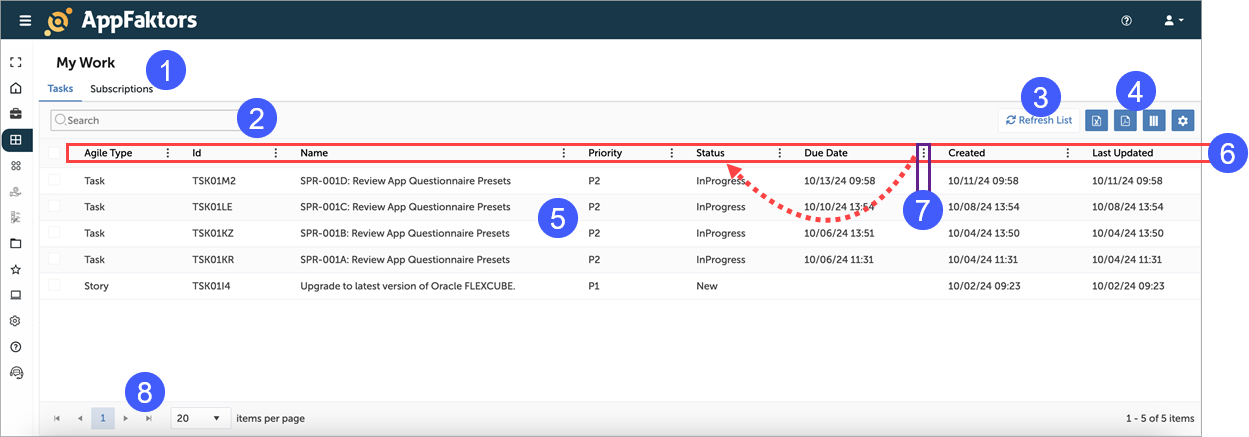
Navigation Tabs:
- Tasks: View your assigned tasks (currently selected)
- Subscriptions: Switch to view your subscribed items
Search Bar: Quickly find specific tasks by entering keywords
Refresh List: Update the task list to show the most recent changes
View Options: Customize your view using the icons on the right:
- Column selector
- Download options
- List/Grid view toggle
- Settings
Task List: Displays your tasks with the following information:
- Id: Unique identifier for each task
- Name: Brief description of the task
- Task Type: Category of the task (e.g., Scorecard Action Items Task, Assessment Task)
- Status: Current state of the task (e.g., Assigned, In Progress)
- Due Date: Deadline for task completion
- Last Updated: Most recent modification date
Sorting and Filtering:
- Click on column headers to sort the list
- Use the filter icon (funnel) in each column to apply specific filters
Grouping: Drag a column header to the indicated area to group tasks by that attribute
Pagination: Navigate through pages of tasks and adjust the number of items displayed per page
Tips:
- Click a task name to view more details or update its status
- Use the search and filter options to quickly find relevant tasks
- Regularly check and update your task statuses to keep your work organized
- Pay attention to due dates to manage your priorities effectively
For additional assistance, please refer to the full user guide in the Help section or contact Support.