Reports
Capability Reports
To access the Capability reports:
- Click Reports in the left pane.
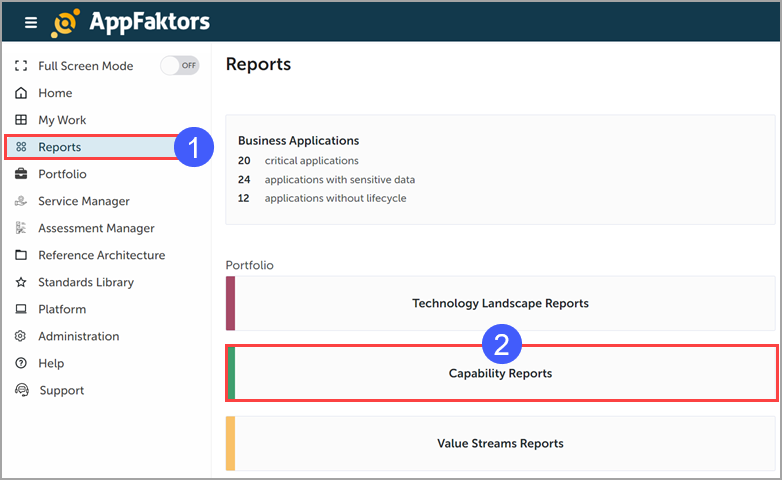
- Click Portfolio > Capability Reports.
Understanding the Capability report
This report provides a visual representation of your organization's capabilities categorized by their strategic importance and associated applications.
View Selector Choose different perspectives to analyze your capabilities (for example, Application Score, Technical Fit, Functional Fit, Risk, Life Cycle Stage).
Confidence Level Filter the data based on the confidence level of the information (for example, Level 1).
Organization Filter Narrow down the view to specific organizational units.
Parent Capability Filter Focus on capabilities related to a specific parent capability.
Show Parent Toggle Option to display or hide parent capabilities in the view.
Capability Categories The report is divided into three main categories:
- Core: Essential capabilities for your business operations
- Strategic: Capabilities that provide competitive advantage
- Supporting: Capabilities that assist core and strategic functions
Capability Boxes Each box represents a capability (for example, Automotive Mobility, Web Banking) and may contain associated applications.
Application Listings Applications associated with each capability are listed within the respective capability boxes.
Color-Coded Scoring A color scheme indicates the status or score of capabilities/applications:
- Inadequate (Red)
- Poor (Orange)
- Needs Improvement (Yellow)
- Good (Light Green)
- Very Good (Dark Green)
How to Use
- Use the View Selector to switch between different analysis perspectives (for example, Application Score, Risk).
- Adjust filters to focus on specific areas of your organization or capability hierarchy.
- Examine the distribution of capabilities across Core, Strategic, and Supporting categories.
- Look at the applications listed under each capability to understand how they support business functions.
- Use the color-coding to quickly identify areas of strength or concern in your capability landscape.
Tips
- Pay special attention to Strategic capabilities, as they are crucial for competitive advantage.
- Identify any Core capabilities with low scores (red or orange) as these may need immediate attention.
- Look for Supporting capabilities that might be candidates for optimization or outsourcing.
- Use this view to ensure that critical capabilities are well-supported by appropriate applications.
- If a category (for example, Supporting) shows "No capabilities found", consider if this is intentional or if capabilities need to be properly categorized.
For more detailed analysis or to understand how to act on this information, please refer to the full user guide in the Help section or contact Support.