Business Architecture page
Use the Business Architecture page to create and view the business objects for inclusion in your portfolios. To view and create portfolios in which you include the business objects described on this page, see Managing portfolios.
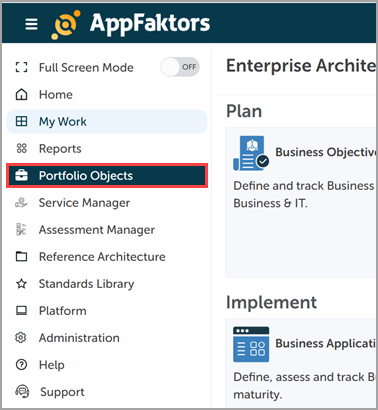
To access the Business Architecture page, click Business Architecture in the left pane.
The Business Architecture page features the following areas:
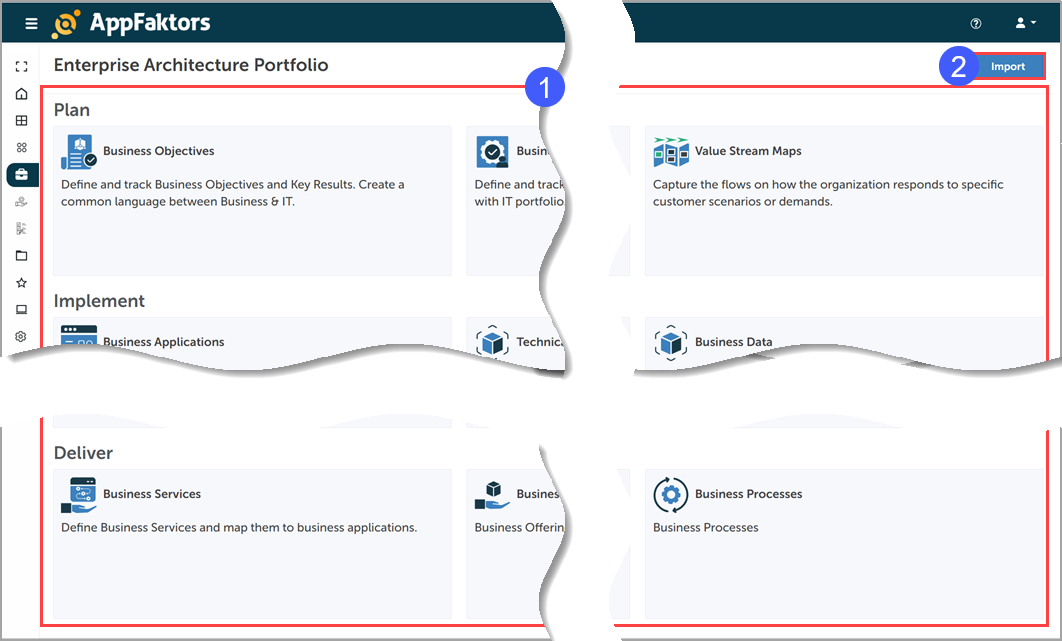
Plan, Implement, Deliver pane
Plan
Business Objectives: Define and track measurable business objectives and key results. Create a common language between Business & IT.
Business Capabilities: Define and track business capabilities which needs to be aligned with IT portfolio.
Value Stream Maps: Define the value stream and its stages, providing quantifiable values for each stage.
Implement
Business Applications: Define, assess and track business application and its artifacts. Manage application lifecycle and maturity.
Technical Capabilities and Products: Define and track evolving technical capabilities which enable business capabilities.
Business Data: Define and track business data.
Deliver
Business Services: Define business services that the application can offer and map them to business applications.
Business Offerings: Define business offerings and map them to business applications.
Business Processes: Define business processes and map them to business applications.
Import - Use to import Business Architecture from ServiceNow or Excel.
Plan Business Objectives
Business Objectives help you identify what you want to achieve in your portfolio. Use the Plan - Business Objectives page to view and create business objectives that you can later assign to portfolios.
Viewing business objectives
To view business objectives:
Click the Business Objectives tile.
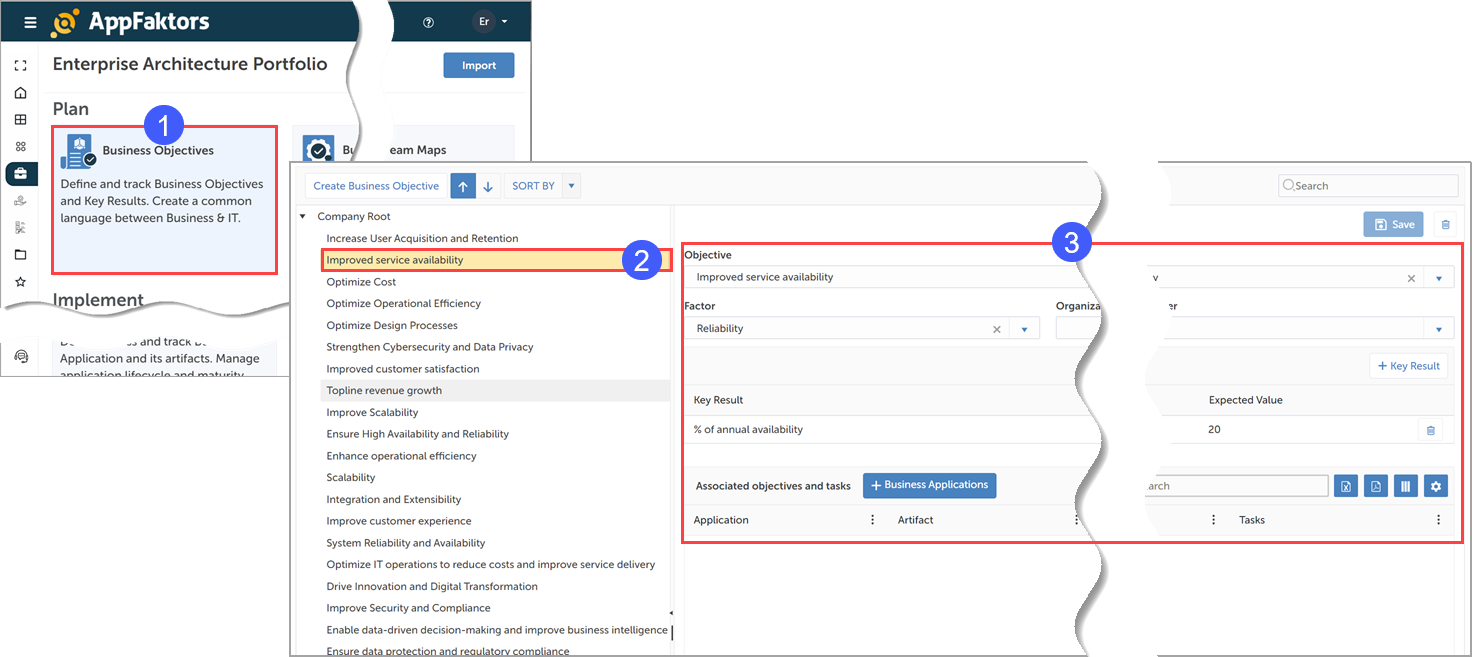
Select the business objectives whose details to view.
View the resultant details in the details pane.
Creating business objectives
To create business objectives:
Click the Business Objectives tile.
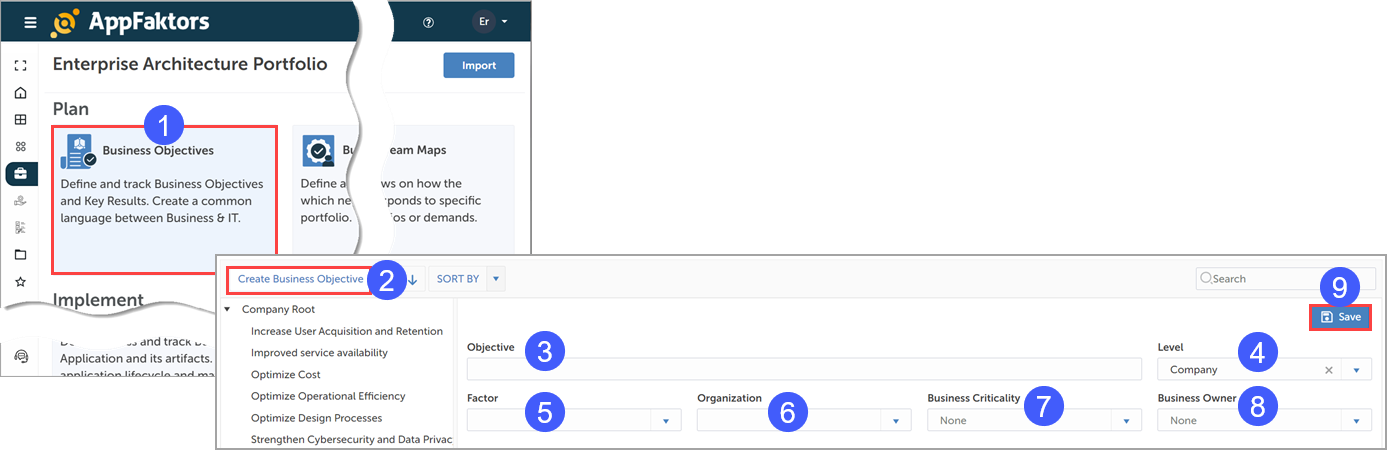
Click Create Business Objective.
Enter the name of the business objective.
Select the level.
Select the factor.
Select the organization.
Select the business criticality.
Select the business owner.
Click Save.
Plan Business Capabilities
Business Capabilities help you determine how the applications in your portfolio will deliver to support business needs and identify functional redundancies. Use the Plan - Business Capabilities page to view and create business capabilities that you can later assign to portfolios.
Viewing business capabilities
To view business capabilities, follow the same procedure as described in Viewing business objectives, except click the Business Capabilities tile instead of the Business Objectives tile.
Creating business capabilities
To create business capabilities, follow the same procedure as described in Creating business objectives, except click the Business Capabilities tile and the Create Business Capability button instead of the Business Objectives tile and the Create Business Objective button, respectively.
Plan Value Stream Maps
Value Stream Maps indicate how customers use your business capabilities. Use the Plan - Value Stream Maps page to view and create value stream maps that you can later assign to portfolios.
Viewing value stream maps
To view value stream maps, follow the same procedure as described in Viewing business objectives, except click the Value Stream Maps tile instead of the Business Objectives tile.
Creating value stream maps
To create value stream maps, follow the same procedure as described in Creating business objectives, except click the Value Stream Maps tile and the Create Value Stream Map button instead of the Business Objectives tile and the Create Business Objective button, respectively.
Implement Business Applications
Business Applications help you identify what applications are part of your portfolio and determine if they are the best fit for your functional needs or if there are other viable options. Use the Implement - Business Applications page to view business applications that you can later assign to portfolios.
Viewing business applications
To view business applications, follow the same procedure as described in Viewing business objectives, except click the Business Applications tile instead of the Business Objectives tile.
Creating business applications
To create business applications, see Creating a business application.
Implement Technical Capabilities and Products
Technical Capabilities help you identify how well the applications in your portfolio deliver and if the technologies used in these applications align to current and future business needs. Use the Implement - Technical Capabilities and Products page to view and create technical capabilities that you can later assign to portfolios.
Viewing technical capabilities and products
To view technical capabilities and products, follow the same procedure as described in Viewing business objectives, except click the Technical Capabilities and Products tile instead of the Business Objectives tile.
Creating technical capabilities and products
To create technical capabilities and products, follow the same procedure as described in Creating business objectives, except click the Technical Capabilities and Products tile and the Create New Technical Capability button instead of the Business Objectives tile and the Create Business Objective button, respectively.
Implement Business Data
Business Data helps you identify whether your portfolio includes sensitive data and if there are any risks involved. Use the Implement - Business Data page to view and create business data that you can later assign to portfolios.
Viewing Business Data
To view business data, follow the same procedure as described in Viewing business objectives, except click the Business Data tile instead of the Business Objectives tile.
Creating business data
To create business data, follow the same procedure as described in Creating business objectives, except click the Business Data tile and the Create New Business Data button instead of the Business Objectives tile and the Create Business Objective button, respectively.
Deliver Business Services
Business Services help you identify what services your applications offer to customers. Use the Deliver - Business Services page to view business services that you can later assign to portfolios.
Viewing business services
To view business services, follow the same procedure as described in Viewing business objectives, except click the Business Services tile instead of the Business Objectives tile.
Creating business services
To create business services, follow the same procedure as described in Creating business objectives, except click the Business Services tile and the Create button instead of the Business Objectives tile and the Create Business Objective button, respectively.
Deliver Business Offerings
Business Offerings help you identify what additional offerings are provided to customers. Use the Deliver - Business Offerings page to view and create business objectives that you can later assign to portfolios.
Viewing business offerings
To view business offerings, follow the same procedure as described in Viewing business objectives, except click the Business Offerings tile instead of the Business Objectives tile.
Creating business offerings
To create business offerings, follow the same procedure as described in Creating business objectives, except click the Business Offerings tile and the Create New Business Offering button instead of the Business Objectives tile and the Create Business Objective button, respectively.
Deliver Business Processes
Business Processes help you identify how your services are provided to customers. Use the Deliver - Business Processes page to view and create business objectives that you can later assign to portfolios.
Viewing business processes
To view business processes, follow the same procedure as described in Viewing business objectives, except click the Business Processes tile instead of the Business Objectives tile.
Creating business processes
To create business processes, follow the same procedure as described in Creating business objectives, except click the Business Processes tile and the Create New Business Process button instead of the Business Objectives tile and the Create Business Objective button, respectively.
Importing and exporting business objects
You can import and export business objects to and from Excel CSV spreadsheets, and you can import business objects from ServiceNow.
Importing business objects from Excel CSV files
To import a business object from an Excel CSV file:
- Select Business Architecture from the left menu.
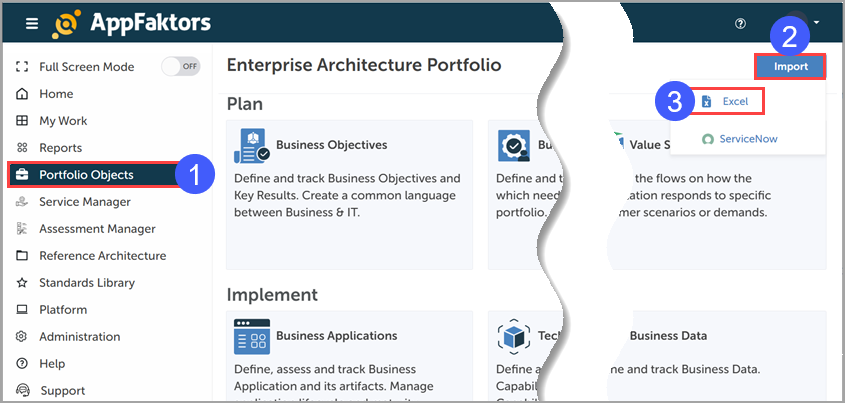
Click Import.
Select Excel.
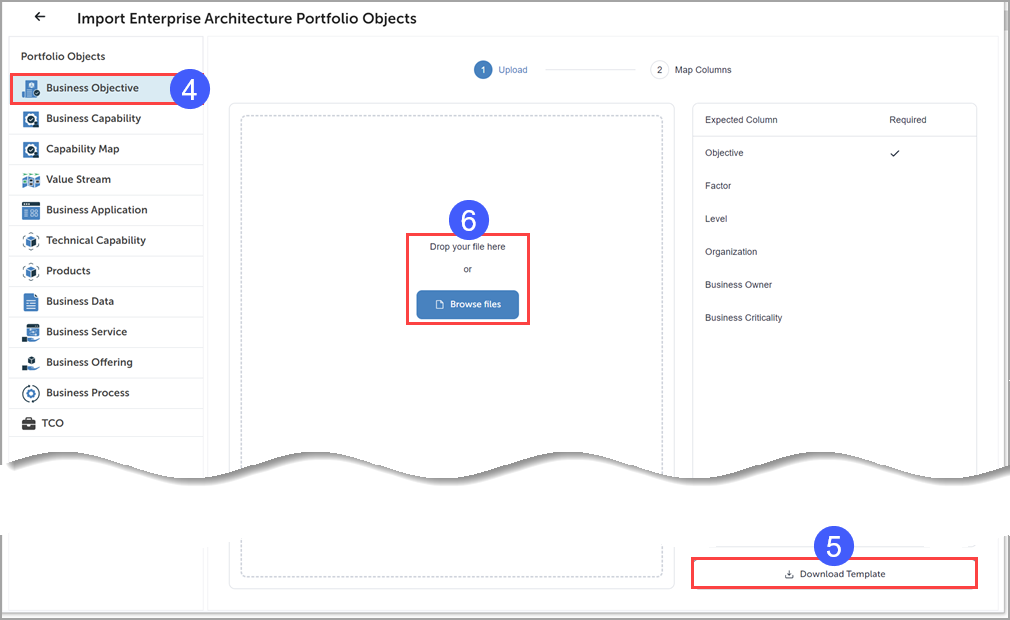
Select the type of business object to import.
If needed, download the CSV template file and populate it with the data to import.
Select the CSV file
Map the data.