Home > Portfolio
Depending on your role, you may see the PORTFOLIO tab on your Home page.
Managing portfolios
Use the PORTFOLIO tab to create portfolios and take a comprehensive look at your organization's enterprise architecture, including portfolio analysis. The following sections describe how to create and view portfolios. See Portfolio Objects for information about accessing and managing the components that comprise portfolios.
Creating portfolios
To create a portfolio:
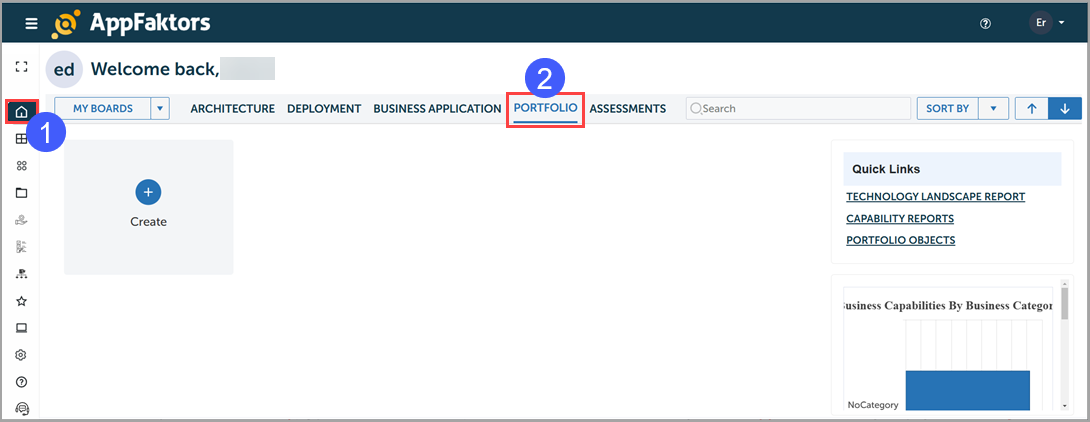
- Click the Home button.
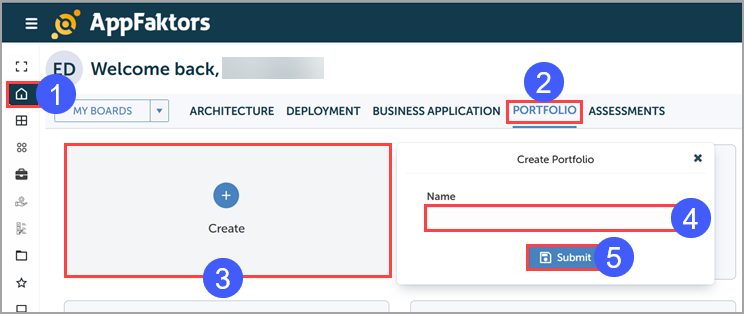
Select the PORTFOLIO tab.
Click the Create button.
Name the portfolio.
Click Submit.
The Create Portfolio page appears with the Overview tab in focus.
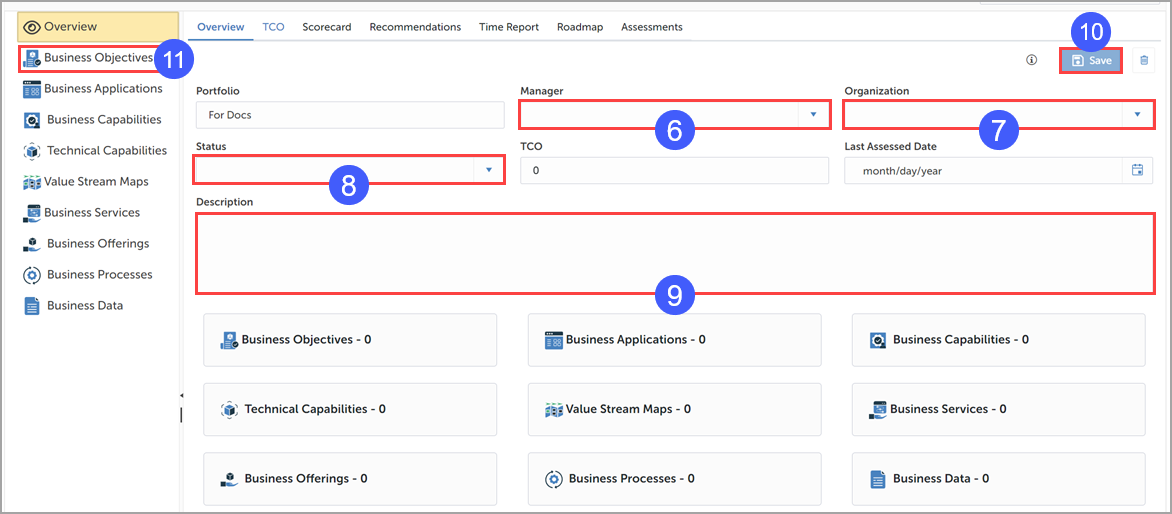
Select a manager.
Select an organization.
Assign a status.
Enter a useful description for other team members that may browse this portfolio.
Click Save.
Select Business Objectives from the left menu to begin assigning business objects to the portfolio.
The Business Objectives page appears.
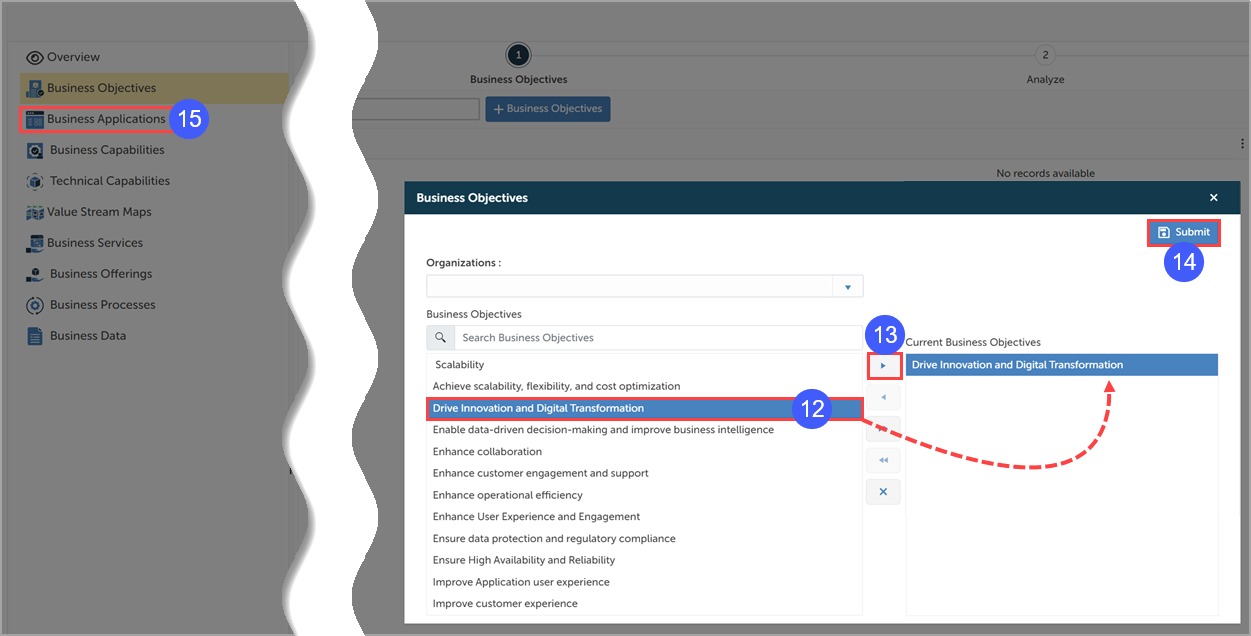
Select the desired business objective(s).
Note: You can use the + Business Objectives button to add a new business objective to the left side of the list:

- Click the appropriate arrow button to move the objective(s) to the Current Business Objectives side of the dialog box.
- Click Submit.
- Select Business Applications and add applications in much the same way as you just added business objectives.
- Repeat for business capabilities, technical capabilities, value stream maps, business services, business offerings, business processes, and business data as needed.
Viewing portfolios
Use the PORTFOLIO tab to view a portfolio, exploring its:
- Overview
- Scorecard
- Recommendations
- Time Report
- Roadmap
- Assessments
To view a portfolio:
Click the Home button.
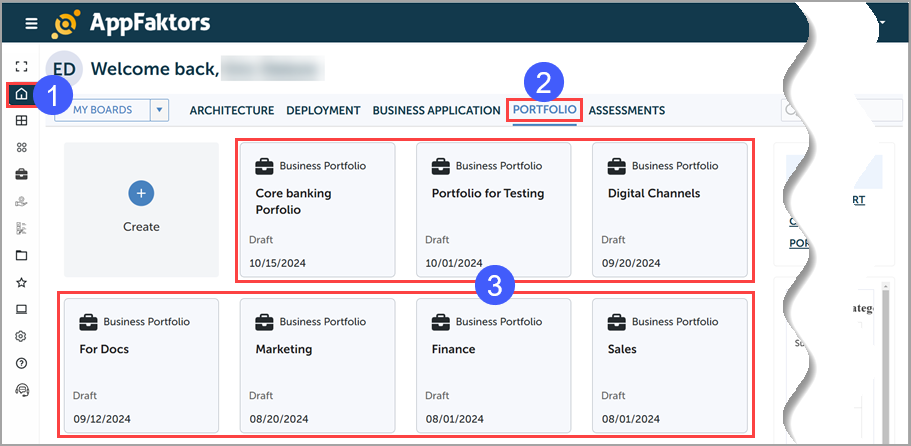
Select the PORTFOLIO tab.
Select one of the portfolio tiles to view the corresponding portfolio.
The Portfolio detail page appears.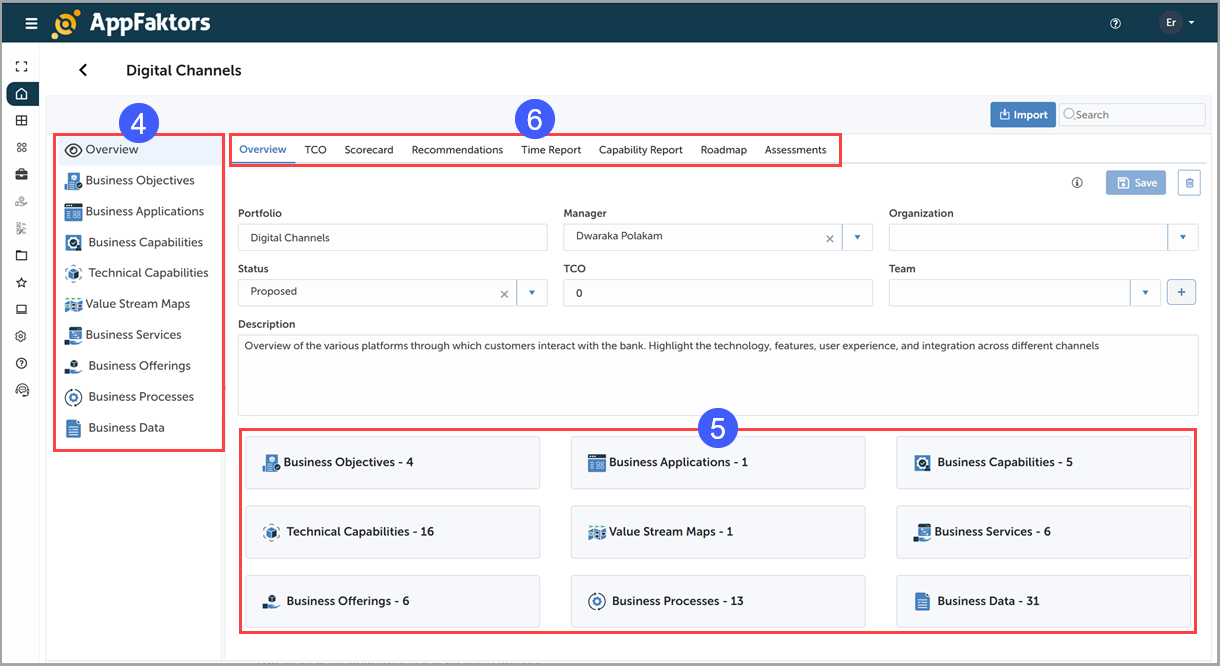
Use the menu on the left to view the overview and business object details.
View the business objects summary for a list of how many of each type of business objects exists in the portfolio. You can click a business object type to view the underlying list of business objects.
Use the Portfolio details tabs to view the following information about the portfolio:
- Overview
- Scorecard
- Recommendations
- Time Report
- Roadmap
- Assessments
Viewing the Total Cost of Ownership (TCO)
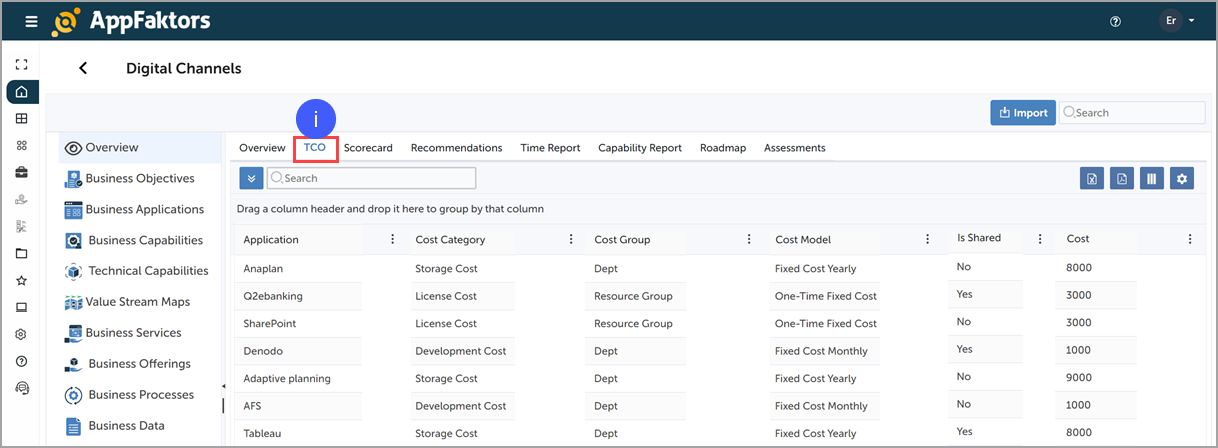
Click the TCO tab to view the TCO values.
Viewing the scorecard
The scorecard reflects the portfolio's adequacy score and helps you create action items to address any areas for improvement.
To view the portfolio scorecard:
Click the Scorecard tab. 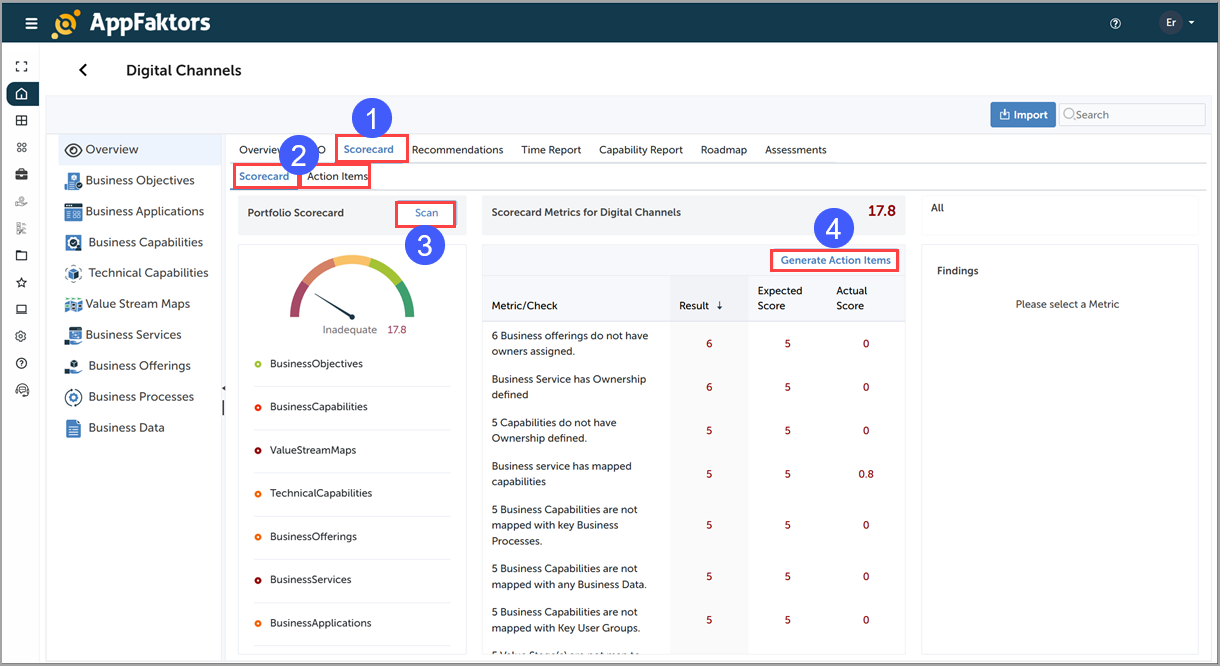
Click Scorecard or Action Items to view the associated details.
Click Scan to scan the portfolio and generate scorecard data.
Click Generate Action Items to create action items based upon scorecard data.
Viewing the recommendations
Click the Recommendations tab to view recommendations to improve the portfolio.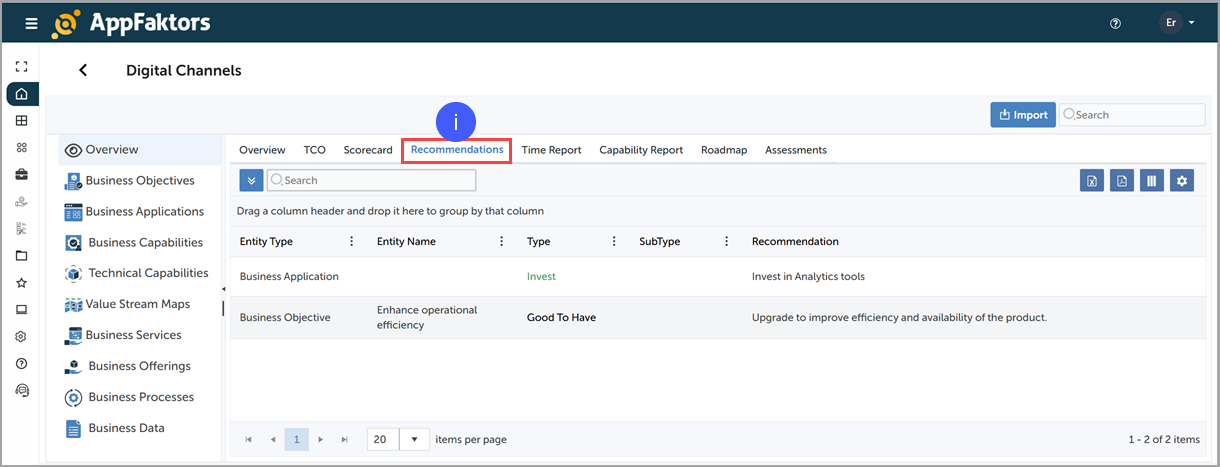
Viewing the time report
Click the Time Report tab to view the time report.

Viewing the capability report
Click the Capability Report tab to view the capability report.
 Viewing the roadmap
To view the roadmap:
- Click the Roadmap tab.
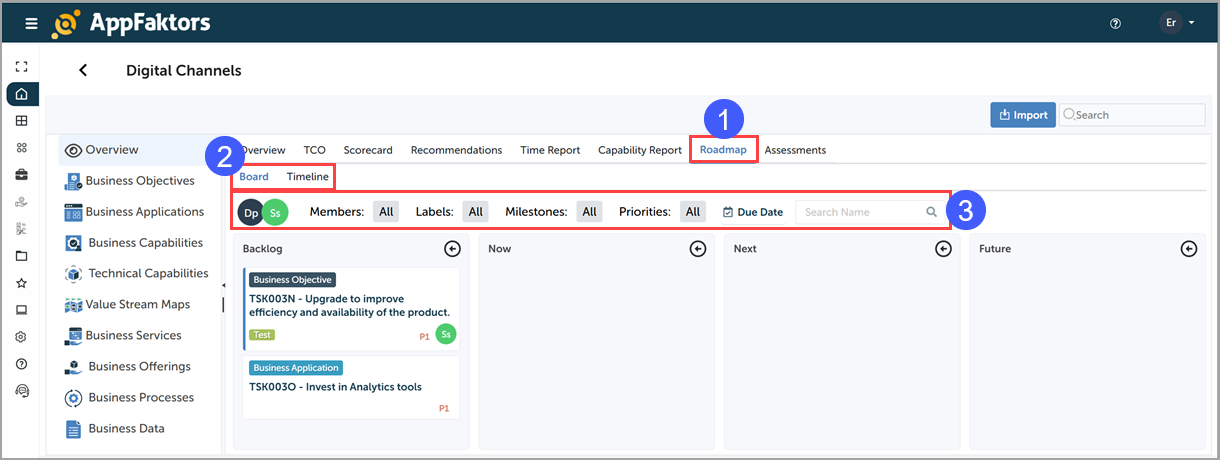
- Select Board or Timeline.
- Use the controls to filter the information that appears. The controls change depending on whether you choose Board or Timeline.
Viewing and requesting assessments
To view assessments:
- Click the Assessments tab.
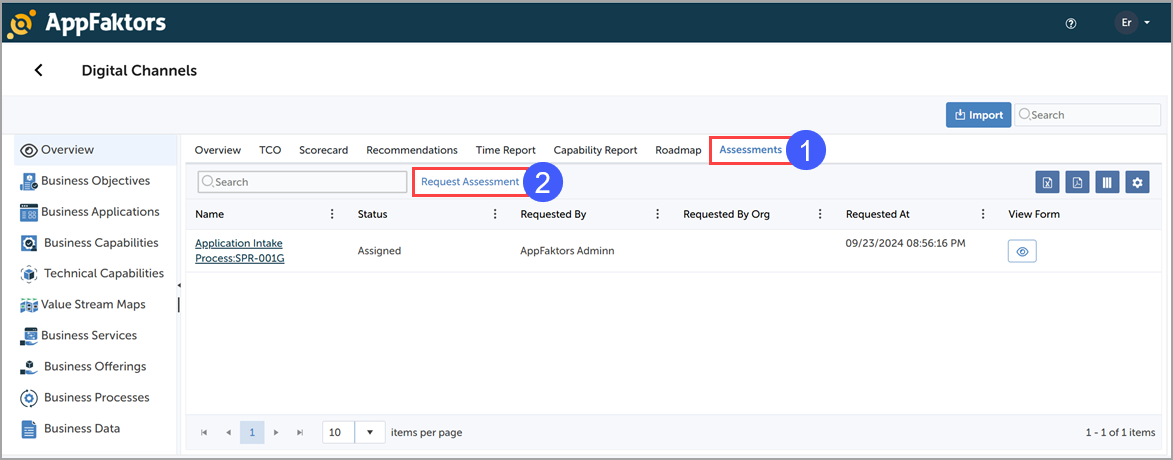
- Click Request Assessment to request a new assessment.
Tips
- Click any card to view or edit its details.
- Use filters to focus on specific types of projects or statuses.
- Check "Upcoming Tasks" regularly to stay on top of your work.